Kiwi values every sale at the price that was in effect at the moment of sale, so getting prices in on time, and marking exactly when pump displays changed, is what keeps your revenue figures accurate. This chapter covers how prices are resolved, how to set them, and the meter snapshot workflow for fuel price changes.
Who this chapter is for: organisation admins and administrators set prices; branch managers submit meter snapshots.
How Kiwi decides which price applies
Every price lives in a price list with a scope and an effective window:
- Organisation scope prices apply to all branches.
- Branch scope prices apply to one branch and override the organisation price for that branch.
- Each list has an Effective From date and, optionally, an Effective To date.
When Kiwi values a sale, it looks for a branch price in effect at that time; if there is none, it uses the organisation price. Where several lists are in effect, the one that became effective most recently wins. Because pump readings are timestamped, a sale is always valued at the price in force during its reading window. That is why fuel price changes need a precise boundary, which is what meter snapshots provide.
Viewing price lists
Open Pricing from the sidebar to see the price lists that apply to you.
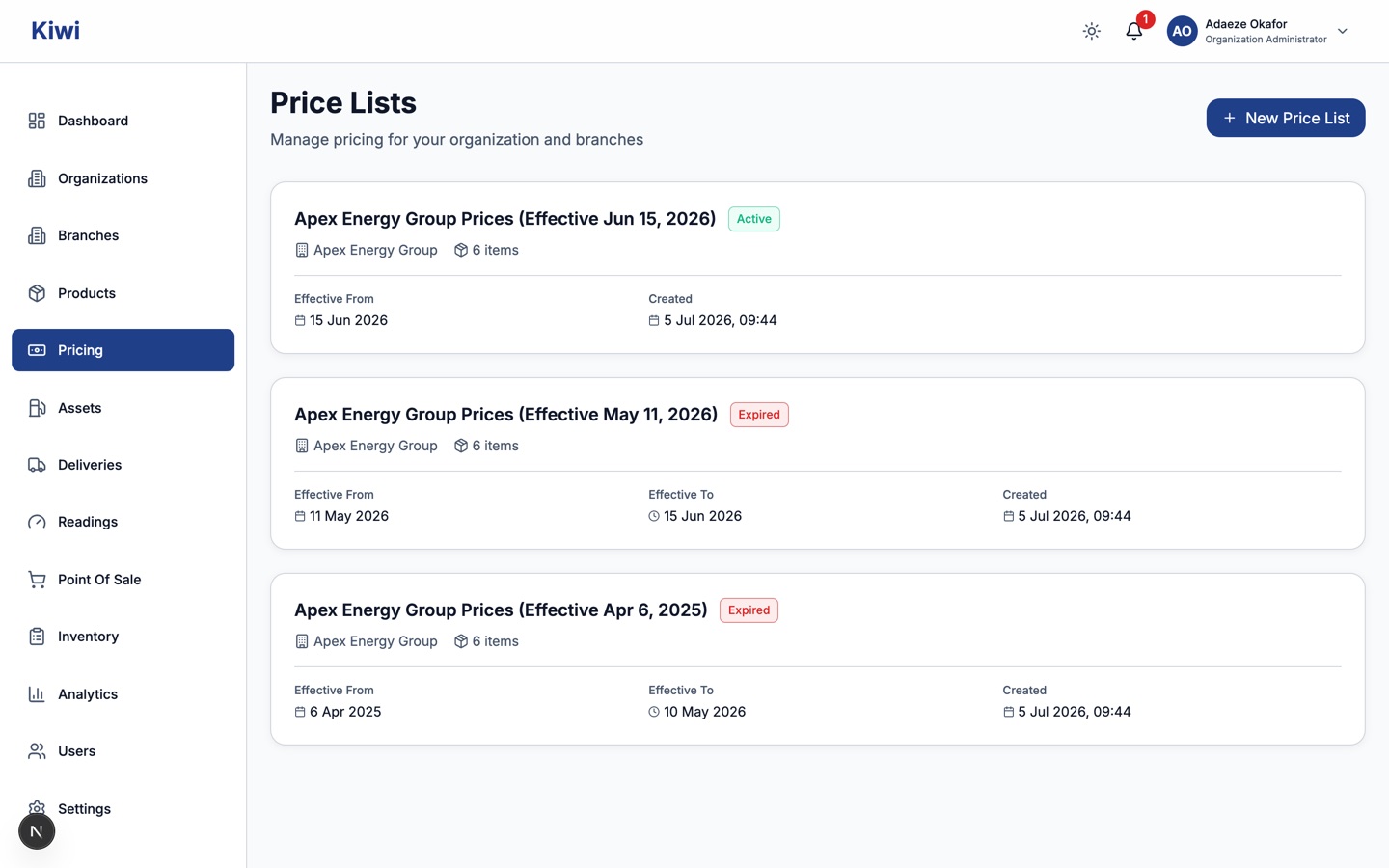
Each card shows the scope, the number of items, the effective window and a status chip: Active (in effect now), Future (scheduled to start later) or Expired. Click a card to view or edit its items. + New Price List creates a list by hand, which suits bulk updates of non-fuel items; for fuel prices, use the product pricing flow below.
Setting a product's price
Open Products, select the product, and scroll to the Product Pricing section.
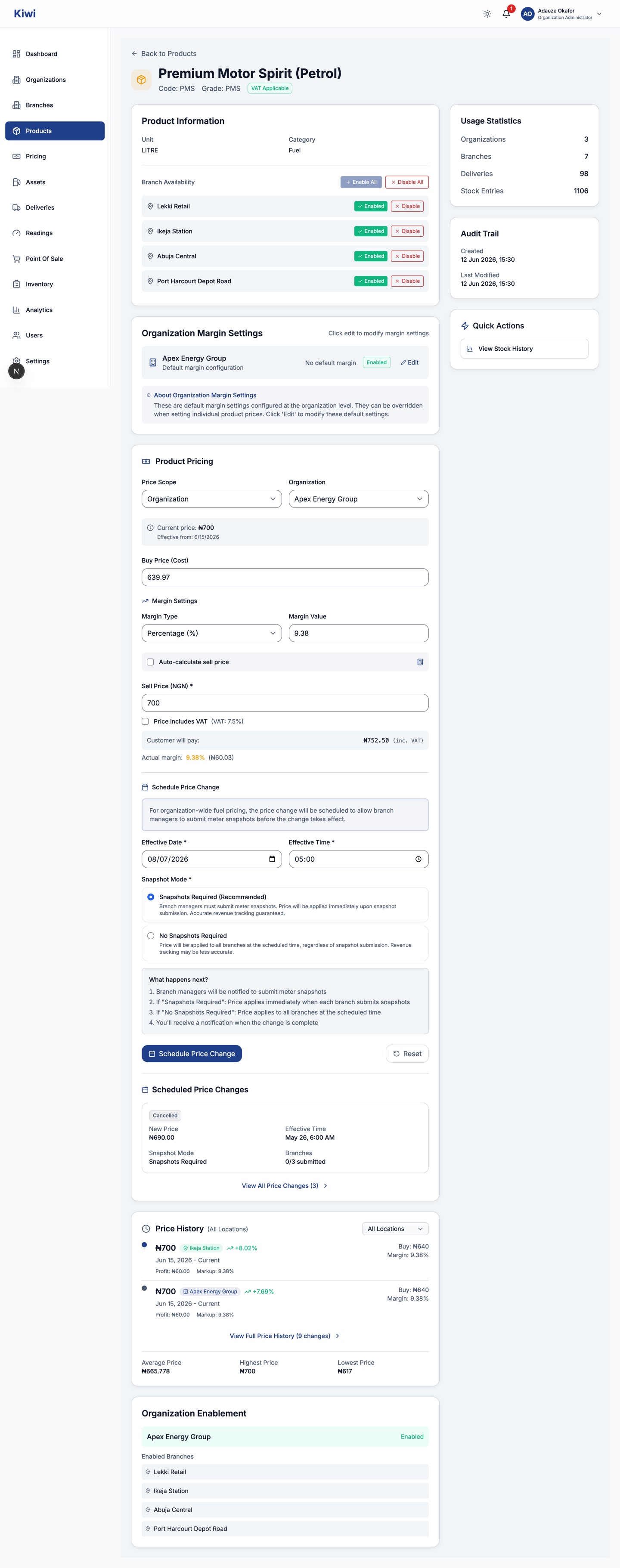
- Choose the Price Scope: Organization for all branches, or Branch to override the price at one branch.
- Enter the Buy Price (Cost) per unit.
- Set the Margin Type (percentage or absolute) and Margin Value. Tick Auto calculate sell price to derive the sell price from cost plus margin, or type the Sell Price yourself.
- If the figure you have in hand already includes VAT, tick Price includes VAT. Kiwi strips the VAT out and stores the price excluding VAT; the customer-facing price shown below the field includes it again.
- Click the submit button. What happens next depends on the product:
- Fuel at organisation scope becomes a scheduled price change, and the button reads Schedule Price Change. See the next section.
- Fuel at branch scope applies immediately, but you must enter meter snapshots for that branch's pumps as part of the submission.
- Non-fuel products apply immediately.
The Price History section below the form shows every past price with its scope and dates, so you can always trace what a product sold for and when.
Scheduling a fuel price change
Organisation-wide fuel prices are never applied silently; they are scheduled, so every branch can mark the exact meter position when its pumps switch to the new price.
- In the Schedule Price Change section of the pricing form, set the Effective Date and Effective Time (WAT). Early morning, before heavy trading, is common practice.
- Choose the Snapshot Mode:
- Snapshots Required (Recommended): each branch's new price takes effect the moment its branch manager submits meter snapshots. Revenue is split exactly at the meter boundary.
- No Snapshots Required: the price applies to every branch at the scheduled time, whether or not snapshots were submitted. Use this for emergencies; revenue attribution around the change is less precise.
- Click Schedule Price Change.
Branch managers are notified immediately that snapshots will be required. Once scheduled, the change appears under Scheduled Price Changes with a Cancel button available until it starts executing. Execution is automatic: within a few minutes of the effective time, Kiwi processes the change, applies prices, and notifies you when it completes.
Submitting meter snapshots (branch managers)
When a price change is scheduled for your branch, you will be told three times: a notification arrives, an alert appears on your dashboard, and the pump reading form shows a blocking banner for the affected pumps. Regular readings for those pumps stay locked until you submit snapshots, so do this promptly.
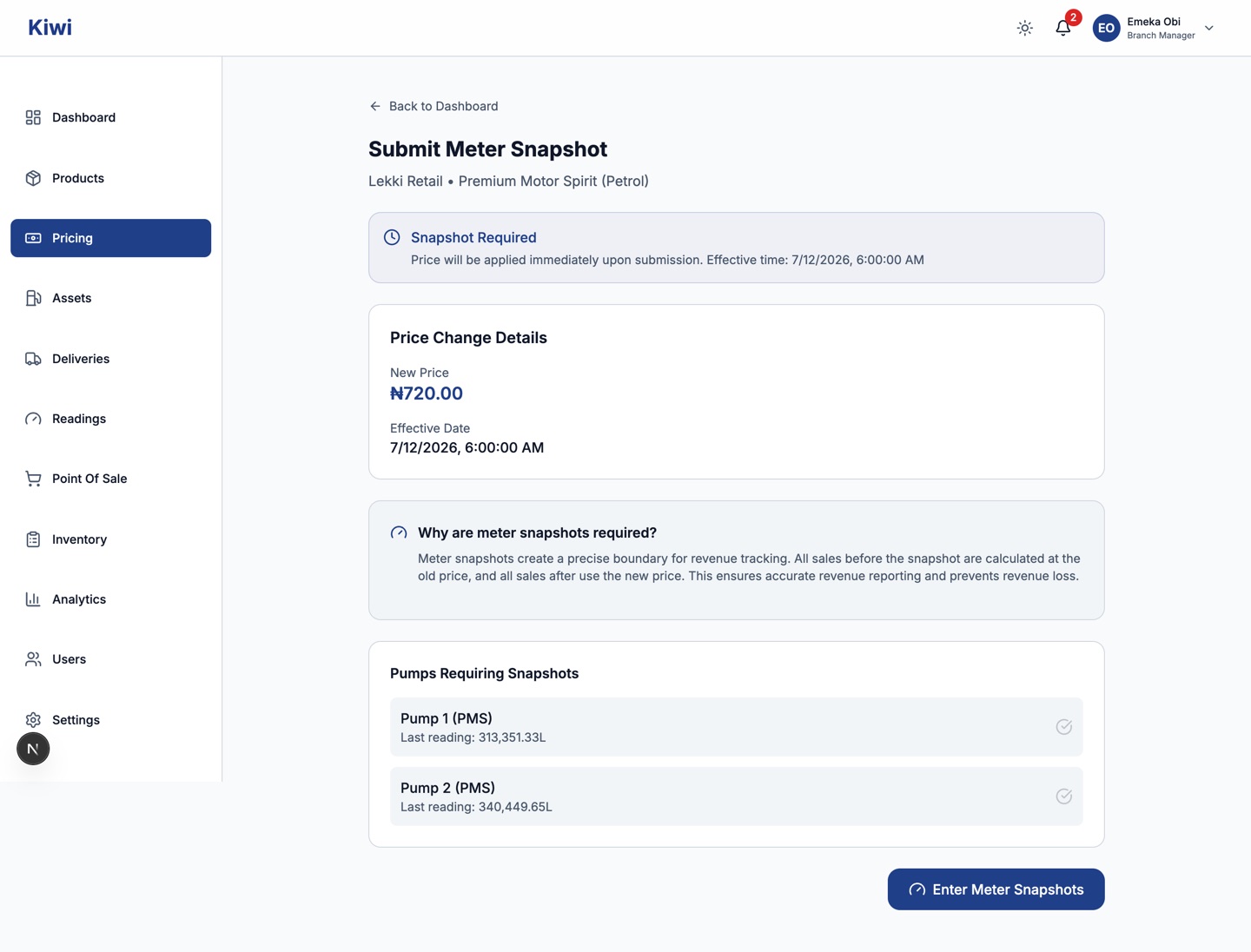
- Click Submit Meter Snapshots on the alert, or follow the link in the notification. The page shows the current price, the new price, the effective time, and every pump at your branch that dispenses the product.
- At the effective time, go out to the pumps. Change each pump's display to the new price and note the meter reading as you do.
- Back on the page, click Enter Meter Snapshots.
- Enter the current meter reading for each pump, in whole litres, exactly as displayed.
- Tick I confirm that I have physically changed the pump display to the new price, record when you changed it, and add notes if useful (for example, "Changed all nozzles, verified display matches new price").
- Submit. The new price takes effect for your branch immediately.
The snapshot readings are the boundary: every litre sold before them is valued at the old price, every litre after at the new price. Submit as close to the effective time as you can. Kiwi's price timing analytics show head office which branches submitted on time, early or late, and a branch that has not submitted by the effective time is marked Overdue on its dashboard and on the price change record.
Tracking a scheduled change
Open the product's page and click View All Price Changes, or follow the link from any price change notification, to reach the Scheduled Price Changes page.
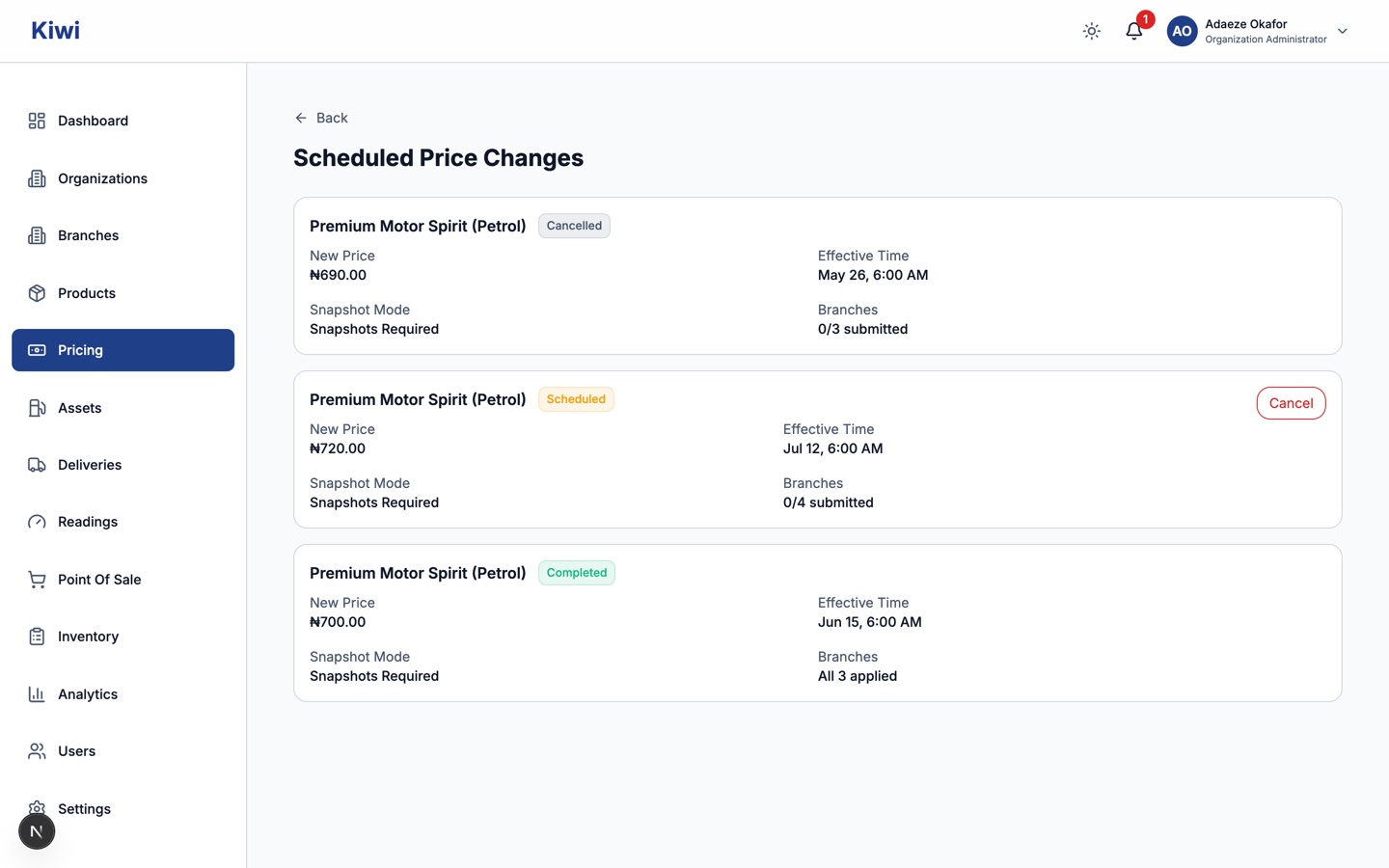
Each change shows the new price, effective time, snapshot mode and how many branches have submitted or been applied. The status chips mean:
| Status | Meaning |
|---|---|
| Scheduled | Waiting for the effective time. Can still be cancelled |
| Awaiting Snapshots | Effective time reached; waiting for branch managers to submit snapshots |
| Partially Applied | Applied at some branches; others are still outstanding |
| Retrying | A technical fault stopped one or more branches; Kiwi retries automatically |
| Completed | Applied at every branch |
| Failed | Technical faults at all branches; contact support if it does not recover |
| Cancelled | Cancelled before execution |
No action is needed from you while a change shows Retrying; the system keeps retrying on its own. Chase branch managers when a change sits in Awaiting Snapshots.
Quick reference
| Item | Rule |
|---|---|
| Price resolution | Branch price beats organisation price; latest effective list wins |
| Organisation-wide fuel prices | Always scheduled, with meter snapshots per branch |
| Branch fuel price override | Applies immediately, snapshots entered at submission |
| Non-fuel prices | Apply immediately, no snapshots |
| VAT | Prices are stored excluding VAT; tick Price includes VAT to enter a VAT-inclusive figure |
| Cancelling | Only changes still showing Scheduled can be cancelled |
| Effective times | West Africa Time (WAT) |