Every litre and every carton that arrives at your station enters Kiwi through a delivery record. Deliveries feed the stock ledger, tank levels and reconciliation, so recording them promptly and accurately is what makes the "Received" side of your reconciliation trustworthy.
Who this chapter is for: branch managers and supervisors receiving stock at a branch.
The Deliveries page
Open Deliveries from the sidebar.
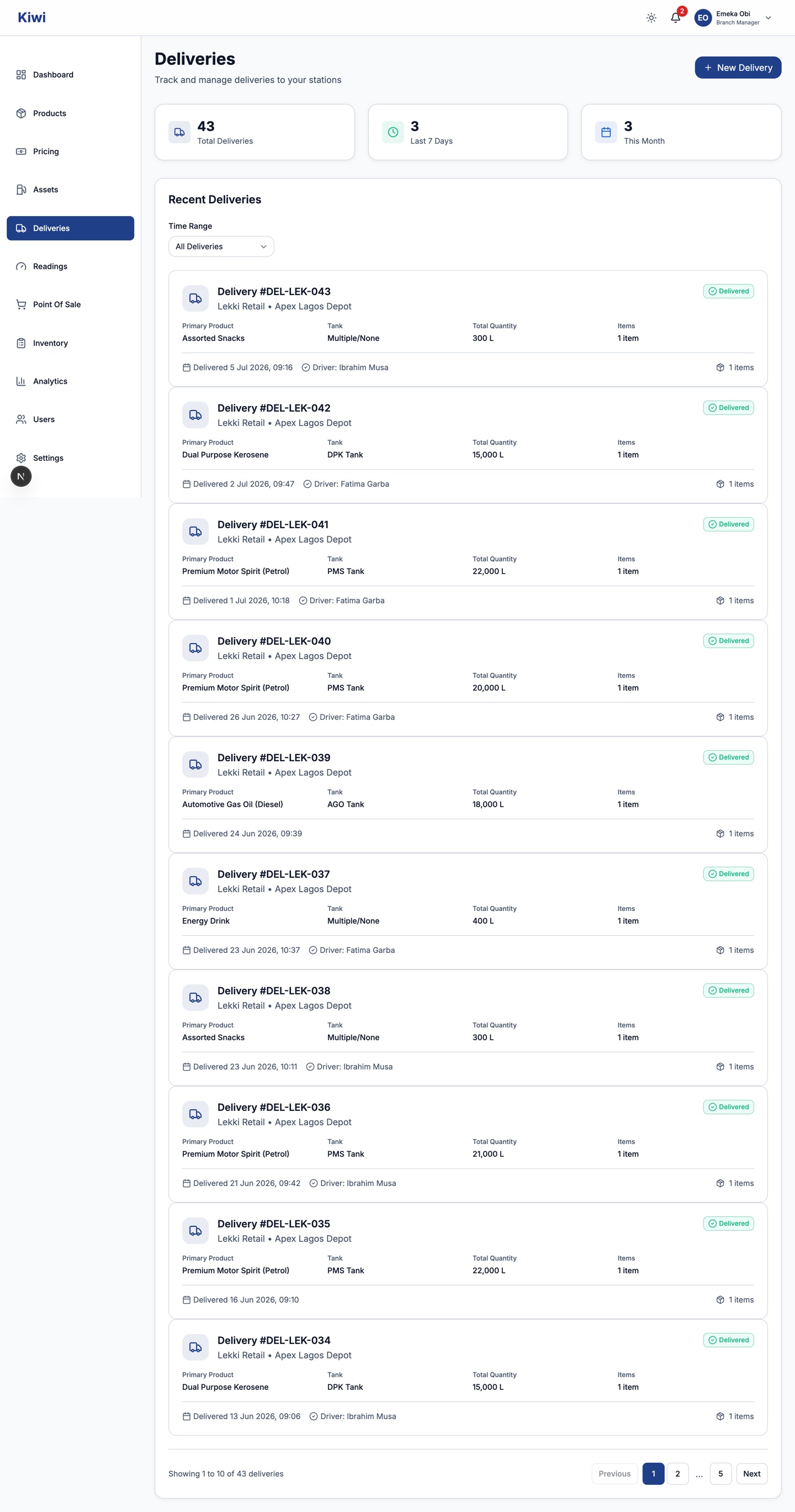
The cards at the top count total deliveries, the last 7 days and this month. The Time Range filter narrows the list. Each delivery card shows the reference, branch and source depot, primary product, destination tank, total quantity, driver and delivery time. Click a card to see the full detail with every line item.
Recording a delivery
Record the delivery while the tanker or supplier is still on site, with the waybill in hand.
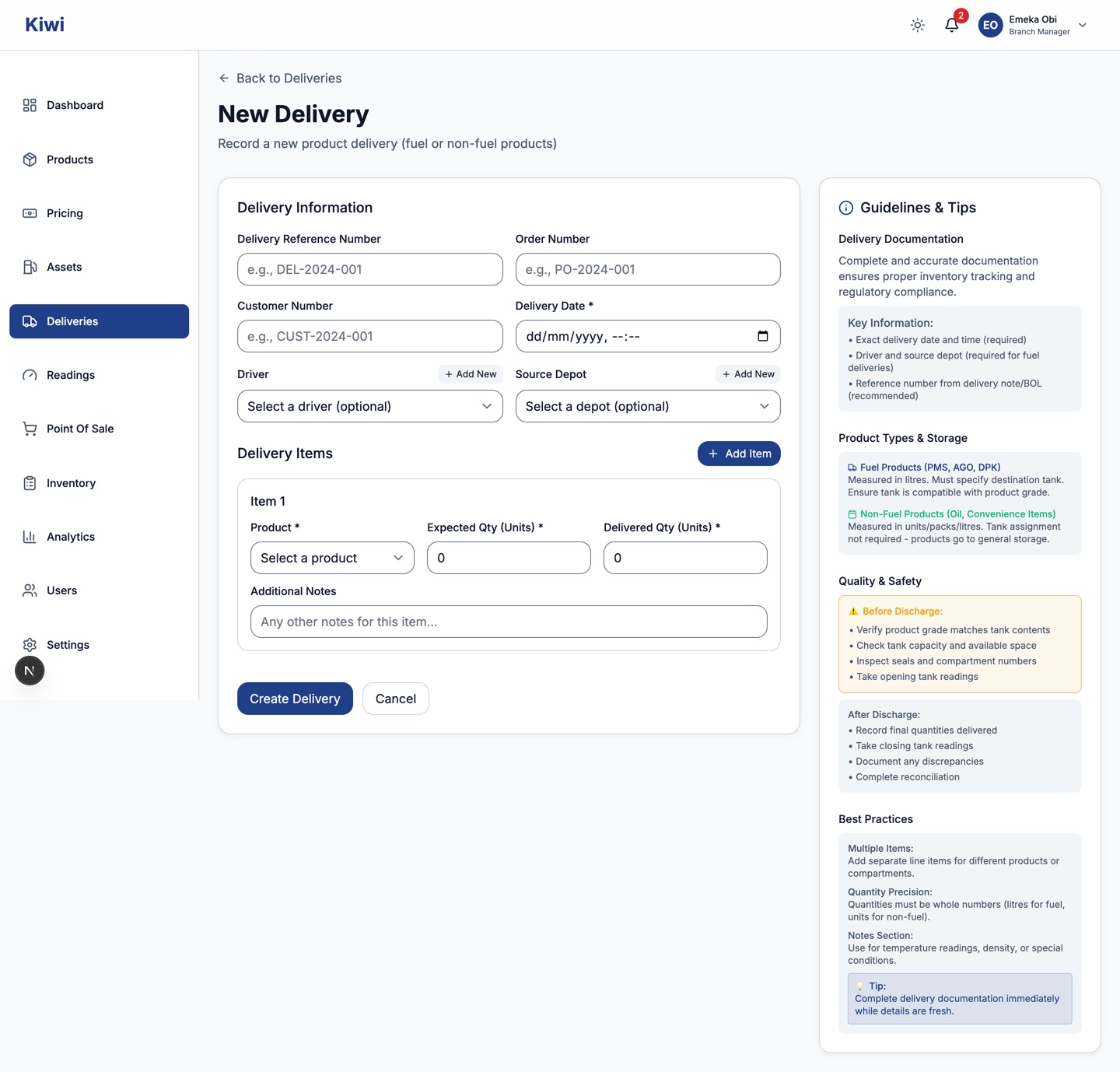
- Click + New Delivery.
- Fill in the Delivery Information:
- Delivery Reference Number, Order Number and Customer Number are optional but recommended; use the numbers from your waybill or purchase order so the record can be traced back to paper.
- Delivery Date is required. Enter the actual date and time the delivery arrived.
- Driver and Source Depot are required for fuel deliveries and optional otherwise. If the driver or depot is not in the list yet, click + Add New beside the field to create one without leaving the form; a driver needs a name and contact number (vehicle plate is optional), a depot needs a name and address.
- Add the Delivery Items, one per product. Click + Add Item for additional products; the bin icon removes an item.
- Product: only products enabled for your branch appear.
- Expected Qty: what the waybill says was sent. Whole numbers, in litres for fuel or the product's unit otherwise.
- Delivered Qty: what actually arrived, measured on your side. It copies the expected quantity automatically; correct it if they differ.
- Destination Tank appears for fuel products and is required. Only tanks assigned to that product are offered. Non-fuel items go to general storage and take no tank.
- Review the warnings before saving:
- Variance Detected appears whenever expected and delivered differ, amber under 2 percent and red from 2 percent. A Variance Reason box opens; it is compulsory for variances of 2 percent or more, so state what happened (short delivery, spillage, measurement difference).
- Tank Capacity Exceeded appears in red if the delivered quantity cannot fit the selected tank. Reduce the quantity or pick a larger tank; do not save through this warning.
- Click Create Delivery.
What happens after you save: each item is posted to the stock ledger as a delivery entry, fuel volumes count towards the tank's stock and appear as "Received" in reconciliation, and the delivery becomes part of the audit trail with your name on it.
After the tanker discharges: take a tank reading. Wait 15 to 30 minutes for the fuel to settle first; the Daily Operations chapter covers the dip procedure. A delivery without a follow-up tank reading leaves reconciliation guessing.
Common problems:
| What you see | What it means |
|---|---|
| "No tanks assigned to this product" | The product has no tank at your branch. An administrator must assign one under Assets before fuel of that product can be received. |
| "Driver is required for fuel product deliveries" | Fuel deliveries must name a driver and source depot. Add them with + Add New if they are not listed. |
| Quantity rejected | Quantities must be whole numbers greater than zero. |
Quick reference
| Item | Rule |
|---|---|
| Fuel items | Destination tank, driver and source depot required |
| Non-fuel items | No tank; measured in the product's unit |
| Quantities | Whole numbers greater than zero |
| Variance reason | Required when delivered differs from expected by 2% or more |
| Reference fields | Optional, up to 50 characters each |
| Item notes | Up to 200 characters |
| After discharge | Take a tank reading once the fuel settles (15 to 30 minutes) |