Kiwi is a fuel retail management system. It tracks your prices, pump and tank readings, deliveries and stock across every branch of your organisation, and turns them into sales figures, reconciliation reports and alerts. This chapter gets you signed in and comfortable finding your way around.
Who this chapter is for: everyone.
Signing in
Kiwi runs in your web browser, on phones, tablets and computers. Your administrator will give you the web address and register your phone number.
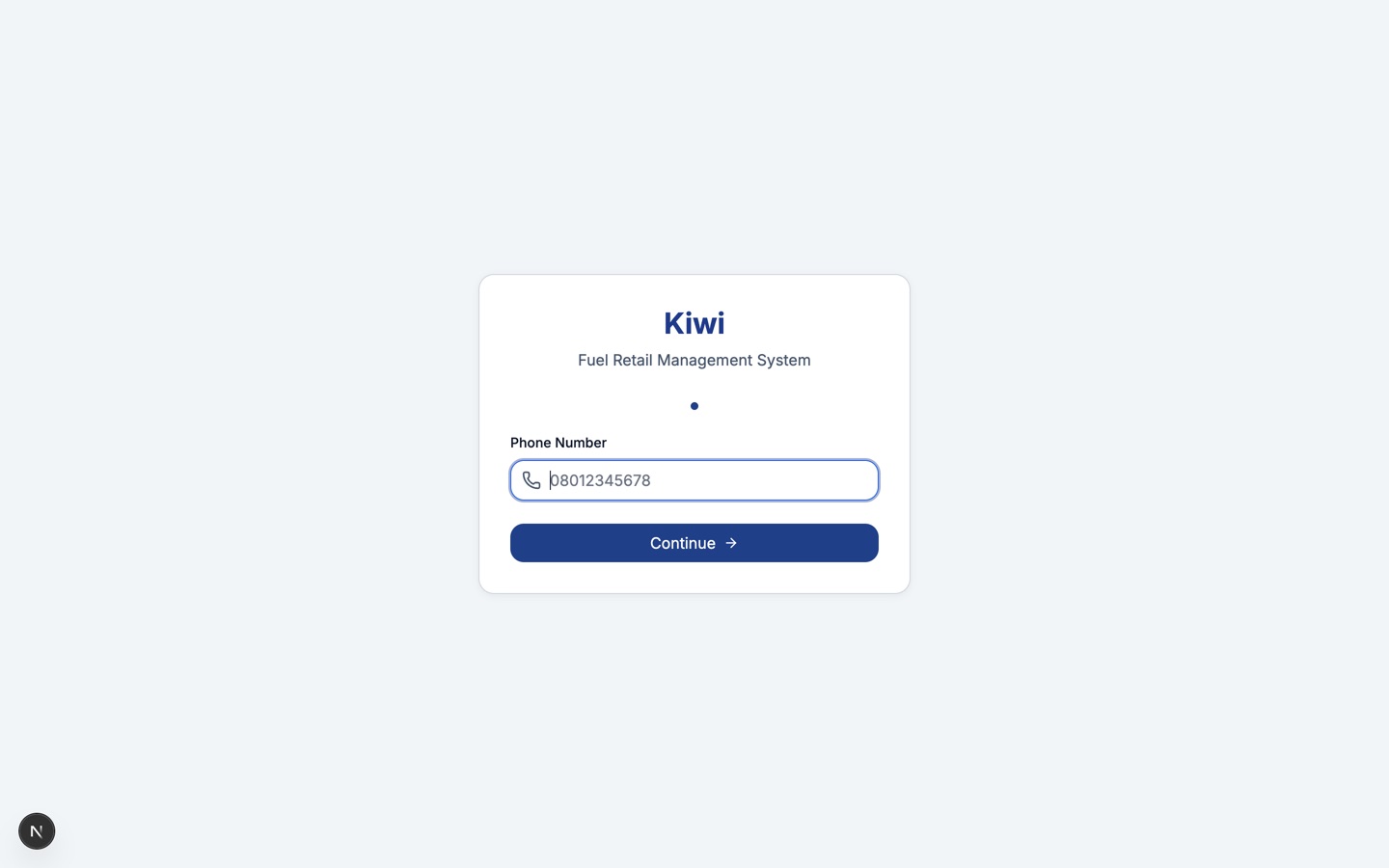
- Open Kiwi in your browser. You will land on the sign-in page.
- Enter your registered Phone Number and click Continue.
- Enter your Password and click Sign In. The eye icon shows or hides what you have typed.
If something goes wrong:
| What you see | What to do |
|---|---|
| "No account found with this phone number" | Check the number for typing mistakes. If it is correct, ask your administrator to register you. |
| A message that your account is inactive | Your account has been deactivated. Contact your administrator. |
| "Invalid password" | Try again, or ask your manager to reset your password. Branch managers and above can reset passwords for their staff. |
First time signing in
If you were just added to Kiwi, you will not have a password yet. Enter your phone number on the sign-in page and Kiwi takes you straight to the password setup screen. Choose a password of at least 6 characters and confirm it. A strength guide helps you pick something strong; prefer a longer password that mixes letters, numbers and symbols. Once saved, you are signed in.
Finding your way around
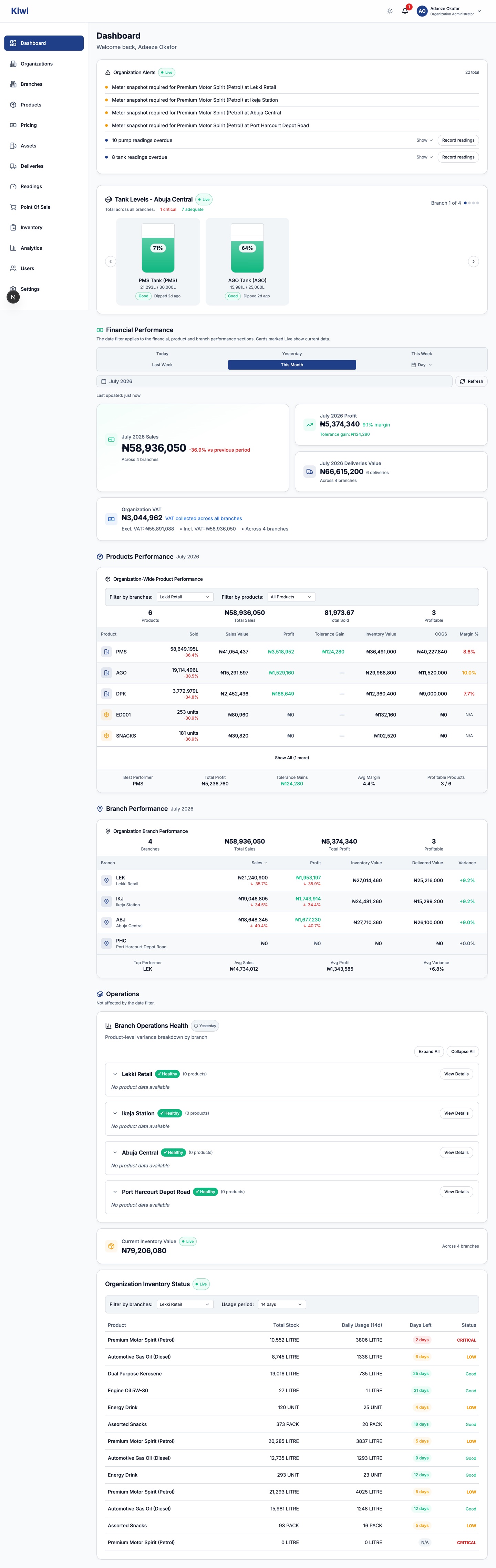
The top bar, always visible, holds three controls on the right:
- The sun and moon icon switches between light and dark themes. Your choice is remembered on that device.
- The bell shows your notifications, with a badge counting unread ones. Price changes needing your action, missed readings and other alerts arrive here.
- Your name and role open the profile menu, where you can sign out.
The sidebar on the left lists the modules you can use. On phones it collapses behind a menu button. What you see depends on your role:
| Module | What it is for |
|---|---|
| Dashboard | Sales, stock and alert overview for your branch or organisation |
| Organizations | Organisation profile and settings (organisation administrators only) |
| Branches | Branch management (organisation administrators only) |
| Products | The product catalogue and per-product pricing |
| Pricing | Price lists and scheduled price changes |
| Assets | Tanks, pumps, calibration and assignments |
| Deliveries | Recording and reviewing fuel deliveries |
| Readings | Pump and tank readings (see the Daily Operations chapter) |
| Point Of Sale | Non-fuel sales |
| Inventory | Stock ledger and reconciliation |
| Analytics | Reports and analysis modules |
| Users | Staff accounts and role assignments |
| Settings | Your account and organisation settings |
Attendants see a shorter menu with just Readings and Settings, because recording readings is their job in Kiwi.
Understanding roles
Every Kiwi user has a role, assigned at organisation or branch level. Your role decides what you can see and do. From least to most access:
| Role | What they do in Kiwi |
|---|---|
| Attendant | Records pump readings assigned to them |
| Supervisor | Records and oversees readings at their branch |
| Branch Manager | Runs a branch: readings, deliveries, reconciliation, meter snapshots for price changes, and staff at their branch |
| Administrator | Organisation-level operations management |
| Organisation Admin | Full control of the organisation: branches, products, pricing, users |
| Site Administrator | Platform-level management across organisations (Kiwi staff) |
If a page tells you that you need a different role or a branch assignment, your administrator can adjust your access under Users.
A note on time
Everything in Kiwi runs on West Africa Time (WAT). Reading times, price change schedules and reports all use it, regardless of the device's own timezone setting.