Everything Kiwi knows about your station's fuel movement starts with readings. Pump meter readings tell the system how much fuel was dispensed, and sales are calculated automatically from the difference between one reading and the next, valued at the price in effect at that time. Tank readings (dips) tell the system how much fuel is physically in each tank. Reconciliation compares the two, so accurate and timely readings are the foundation of loss detection.
Who this chapter is for: attendants, supervisors and branch managers. Anyone assigned to a branch can record readings.
Before you start
- You must be signed in and assigned to a branch. If you see "Branch Access Required", ask your administrator to assign you to a branch.
- All dates and times in Kiwi are West Africa Time (WAT).
- After saving a reading, attendants are returned to their Dashboard; supervisors and managers are returned to the Readings page.
The Readings page
Open Readings from the sidebar. This is the hub for all reading activity at your branch.
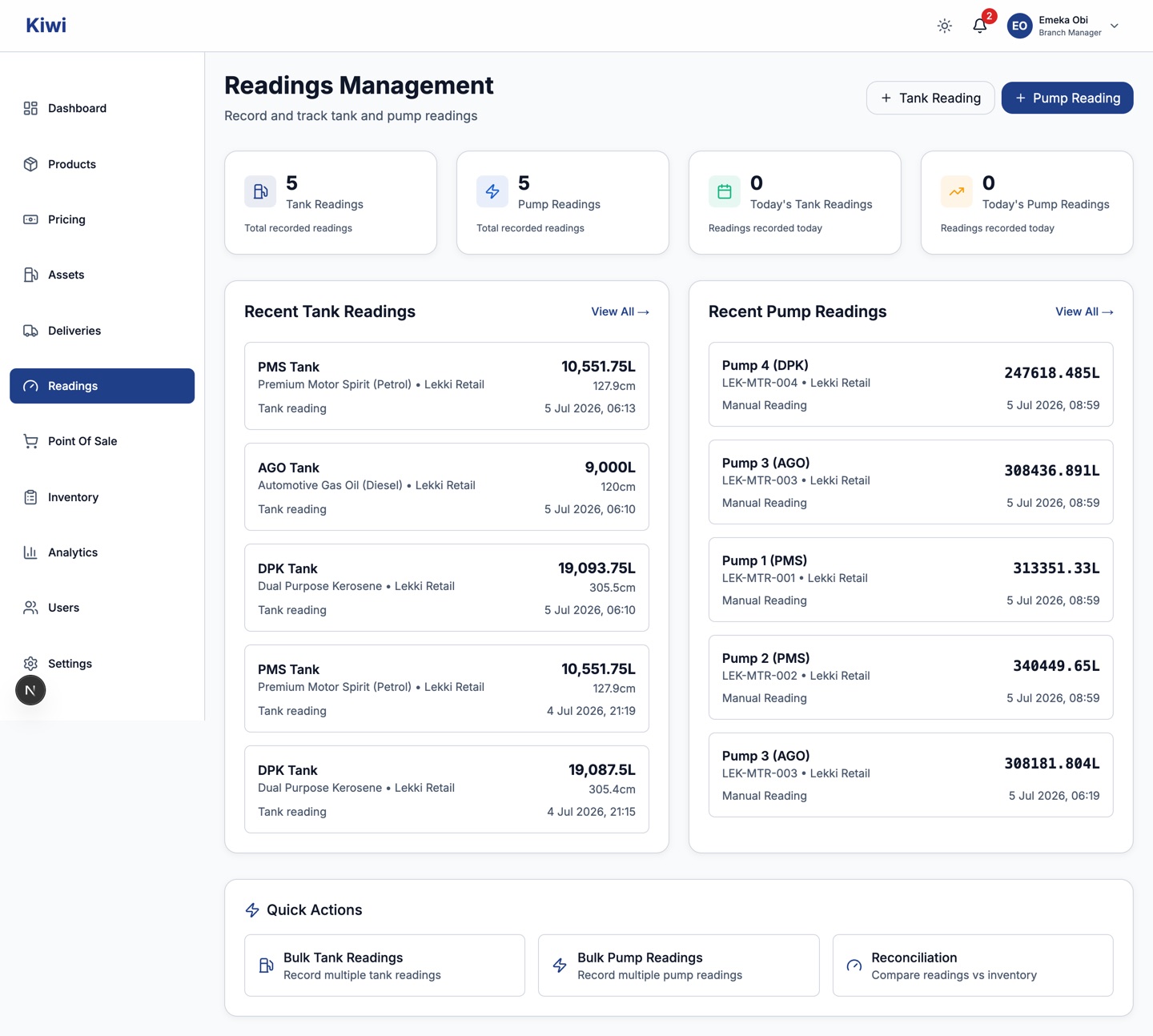
From here you can:
- See counts of recent tank and pump readings, including how many were recorded today.
- Review the most recent readings on each side. Pump readings marked with a circular arrow icon are Return to Tank (RTT) entries; entries marked with an X icon were recorded as "no reading". Hover over the info icon on either to see the reason.
- Start a new reading with the + Tank Reading and + Pump Reading buttons at the top right.
- Jump to Bulk Tank Readings, Bulk Pump Readings or Reconciliation under Quick Actions.
Record a pump reading
Record a pump reading at every shift handover and at your branch's scheduled reading times. Consistent timing makes reconciliation and trend analysis far more reliable.
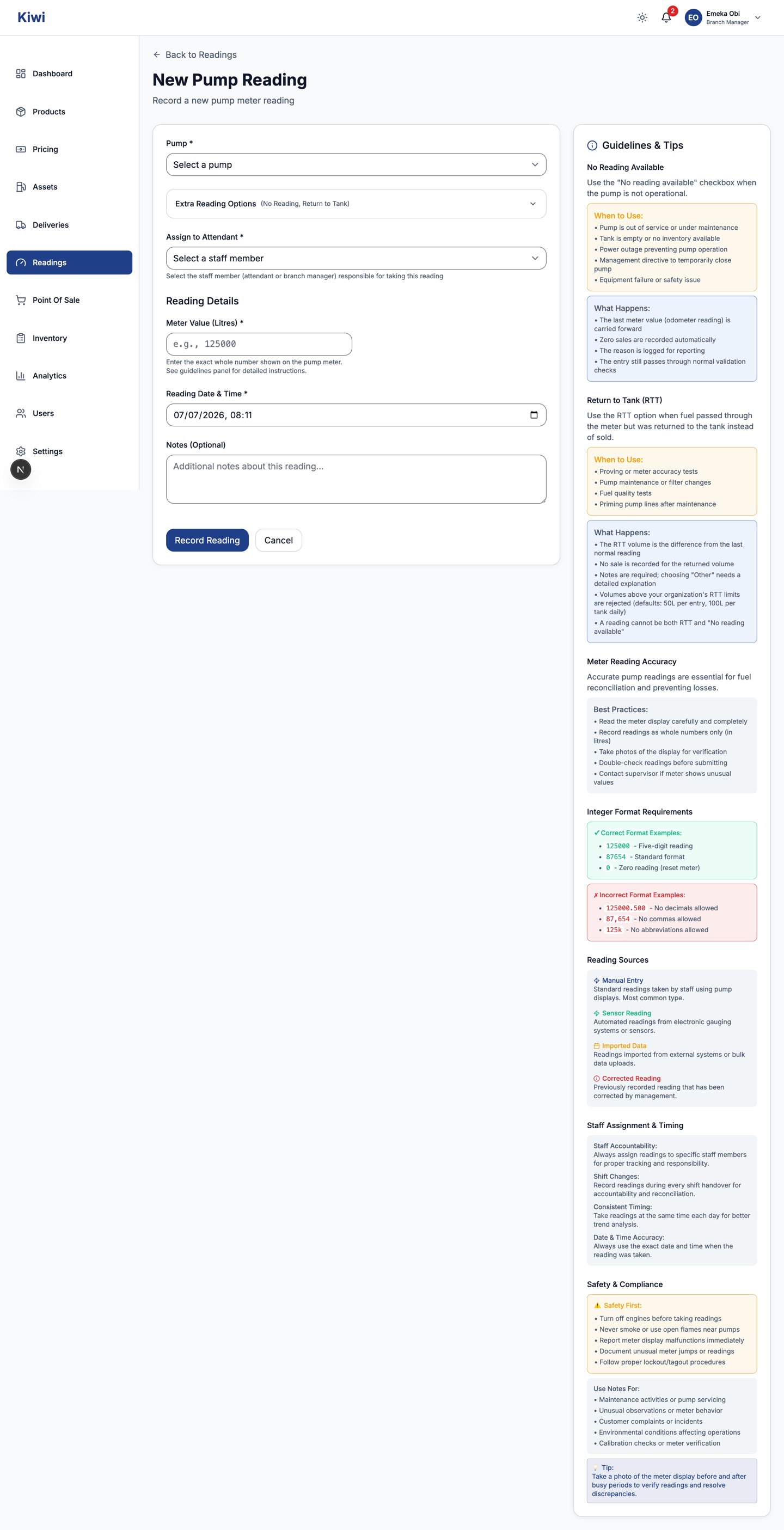
- Go to Readings, then click + Pump Reading.
- Select the pump. An information box appears showing the tank and product connected to the pump and the current selling price.
- If a yellow or red Pending Price Change alert appears, stop. The form is locked until meter snapshots for the price change are submitted. Branch managers will see a Submit Meter Snapshots button on the alert; if you are not a branch manager, inform yours. See the Pricing chapter for the full snapshot procedure.
- Assign the reading. Attendants are automatically assigned to themselves. Supervisors and managers select the staff member responsible for the reading from the Assign to Attendant list.
- Enter the Meter Value in litres, exactly as shown on the pump's meter display. Whole numbers only:
125000is valid,125000.5,125,000and125kare not. - Leave Source as Manual Entry unless the value came from a sensor, an import or a management correction.
- Confirm the Reading Date & Time. It defaults to now; change it if you took the reading earlier.
- Add optional notes (maintenance activity, unusual meter behaviour, incidents), then click Record Reading.
What happens after you save: Kiwi pairs this reading with the previous one for the same pump, calculates the volume dispensed, and records a sale valued at the price in effect during that window. Automatic checks run in the background: suspicious jumps, meters that appear to have gone backwards, duplicates and other irregularities are flagged as anomalies for management review. You do not need to do anything for a flagged reading unless a supervisor contacts you.
Common problems:
| What you see | What it means |
|---|---|
| "No price configured for this product" | The product has no active price. Sales cannot be valued until a manager sets one under Pricing. |
| "No tank assigned to this pump" | The pump is not connected to a tank. An administrator must set the assignment under Assets. |
| Meter value rejected | The value must be a whole number between 0 and 10,000,000. |
When a pump cannot be read
If a pump is out of service, record a "no reading" entry instead of skipping it. Skipped pumps show up as missed readings and trigger alerts to management.
- On the New Pump Reading form, select the pump, then expand Extra Reading Options.
- Tick No reading available for this pump. The meter value fills in automatically with the last known value and cannot be edited, because the meter has not moved.
- Select the reason:
| Reason | Use when |
|---|---|
| Pump Out of Service | Pump is not operational |
| No Inventory | Product unavailable |
| Tank Empty | Connected tank has no fuel |
| Scheduled Maintenance | Planned maintenance or calibration |
| Power Outage | No electricity to operate the pump |
| Management Directive | Temporary closure on management's instruction |
| Equipment Failure | Mechanical or electrical failure |
| Safety Issue | Safety concern preventing operation |
| Other | Anything else. Notes become compulsory |
- Add notes if the situation needs explaining (up to 500 characters), then click Record Reading.
Kiwi records zero sales for the period, carries the meter value forward, and logs the reason for reporting.
Record a Return to Tank (RTT) reading
Use RTT when fuel passed through the pump meter but was returned to the tank rather than sold, for example during pump proving or maintenance. Without an RTT entry, the meter movement would be counted as a sale and your reconciliation would show a false loss.
- On the New Pump Reading form, select the pump first. The tank and product fill in automatically from the pump's assignment.
- Expand Extra Reading Options and tick Return to Tank (RTT) Reading.
- Select the reason:
| Reason | Use when |
|---|---|
| Pump Proving/Calibration | Testing pump accuracy |
| Pump Maintenance | Fuel returned during routine servicing |
| Filter Change | Fuel recirculated while replacing filters |
| Quality Testing | Samples taken for quality verification |
| System Priming | Priming pumps or lines after maintenance |
| Other Reason | Anything else. A detailed explanation of at least 10 characters is required |
- Enter RTT Notes describing what was done. Notes are compulsory for every RTT entry.
- Enter the Meter Value shown on the meter after the operation, then click Record Reading.
What happens after you save: the returned volume is calculated automatically as the difference between this meter value and the last normal reading. No sale is recorded for that volume.
Rules to know:
- RTT volumes are limited per entry and per tank per day. The defaults are 50 litres per entry and 100 litres per tank daily; the current limits for your organisation are shown in the blue info box on the form. Entries above the limit are rejected, so plan proving runs accordingly.
- A reading cannot be both RTT and "no reading available". Ticking one clears the other.
- Every RTT entry is kept in a permanent audit trail linking the pump, tank, product and the person who recorded it.
Record a tank reading (dip)
Record tank readings at your branch's scheduled times each day, and after every delivery. Wait 15 to 30 minutes after a delivery before dipping, so the fuel can settle.
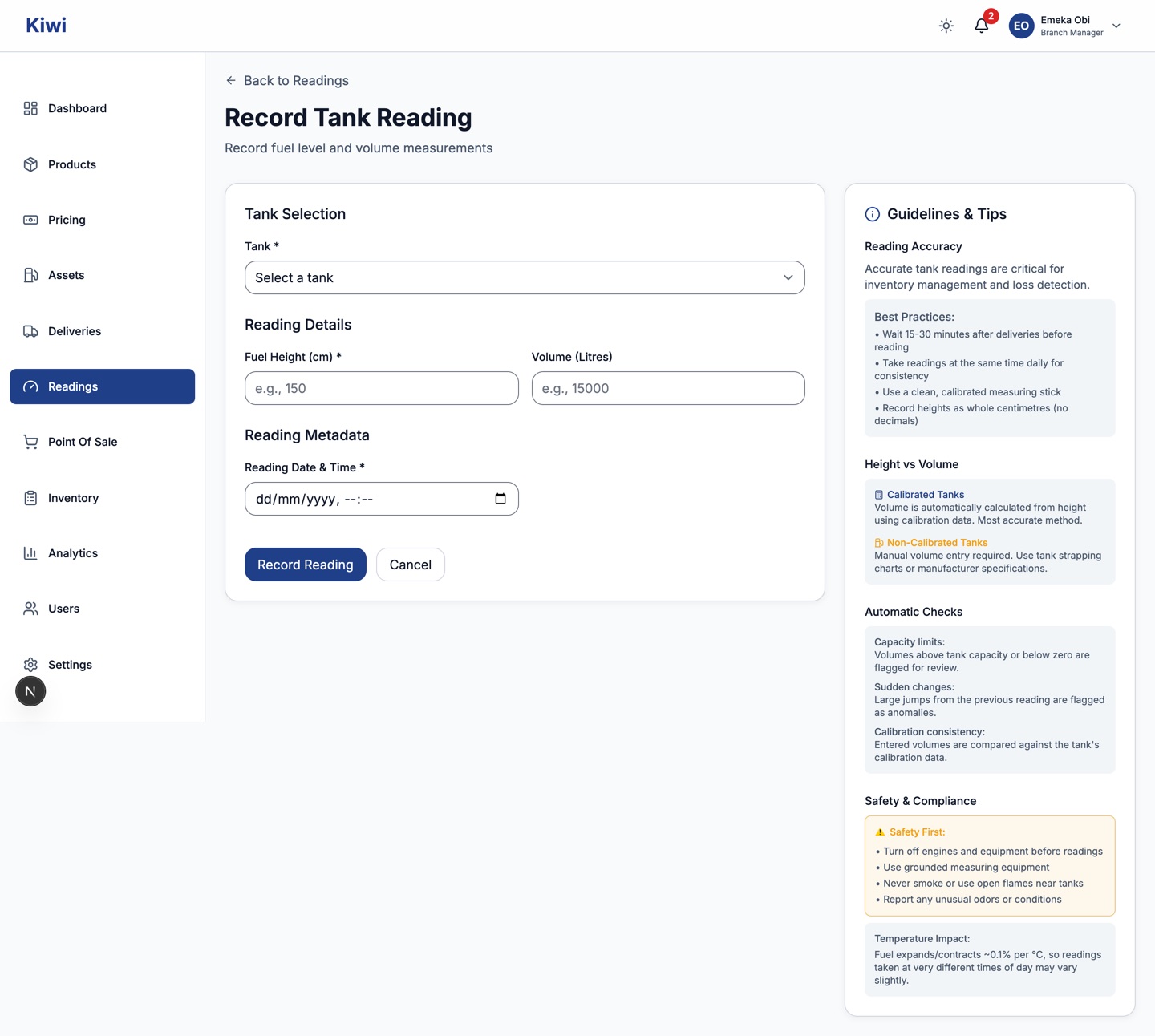
- Go to Readings, then click + Tank Reading.
- Select the tank. An information box shows its capacity, current product and calibration status.
- Enter the Fuel Height from your dip stick, in whole centimetres.
- Check the Volume field:
- For calibrated tanks, the volume is calculated automatically from the height and the field is locked. A calculator icon confirms this.
- For tanks without calibration data, enter the volume yourself in whole litres, using the tank's strapping chart or manufacturer specifications. Ask an administrator to add calibration data so this step becomes automatic.
- Confirm the Reading Date & Time, then click Record Reading.
What happens after you save: the reading updates the tank's current stock level on the dashboard. Automatic checks flag volumes above the tank's capacity, sudden jumps from the previous reading, and volumes inconsistent with the tank's calibration data.
Enter readings in bulk
At shift change you usually need readings for every pump and tank at once. The bulk forms let you enter up to 100 readings in one submission.
For pumps, go to Readings, then Bulk Pump Readings under Quick Actions. Click Add Reading for each pump and fill in the pump, meter value, source and reading time per row. The bin icon removes a row.
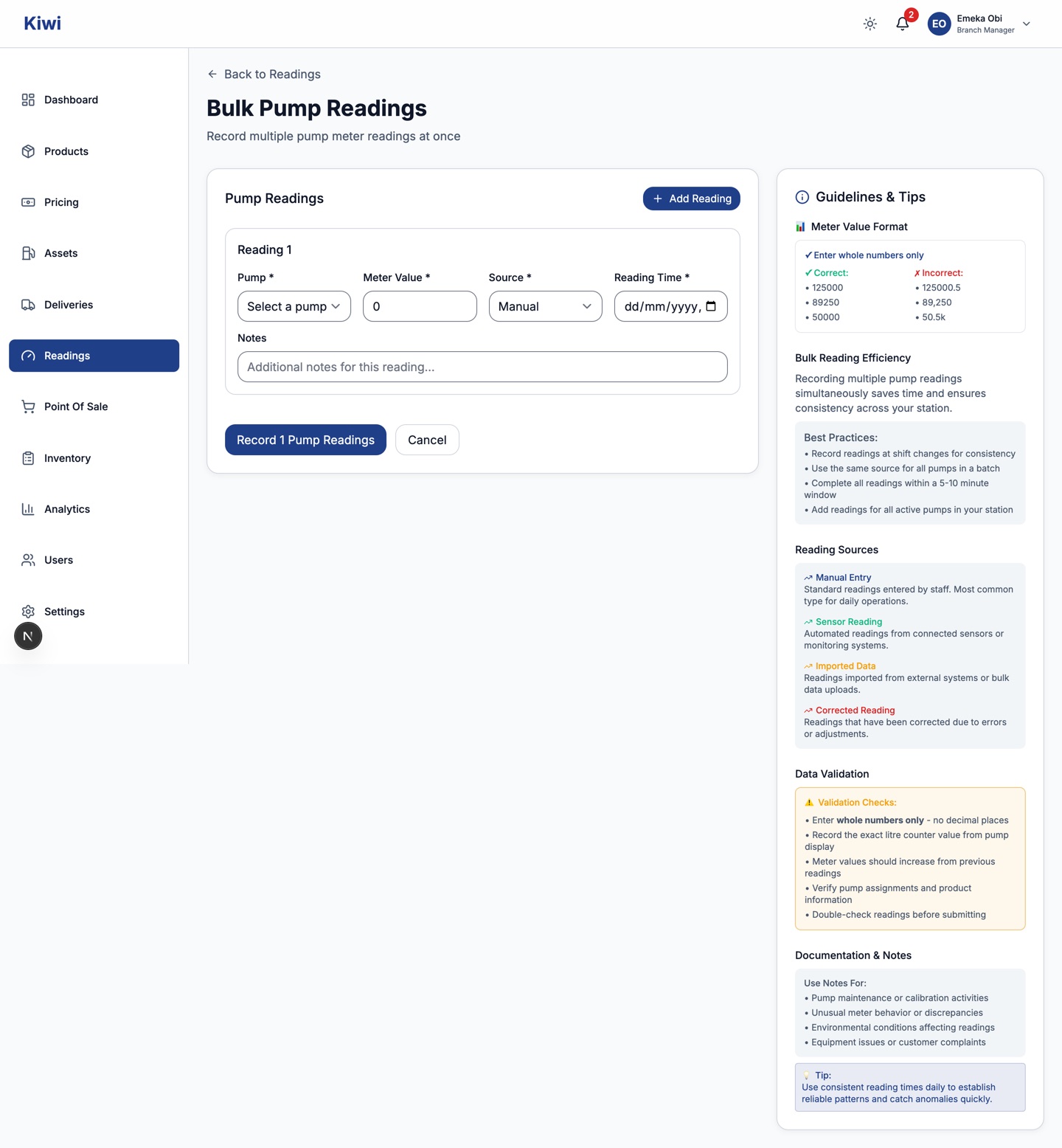
For tanks, use Bulk Tank Readings. Each row takes the tank, fuel height and reading time, with volume auto-calculated for calibrated tanks.
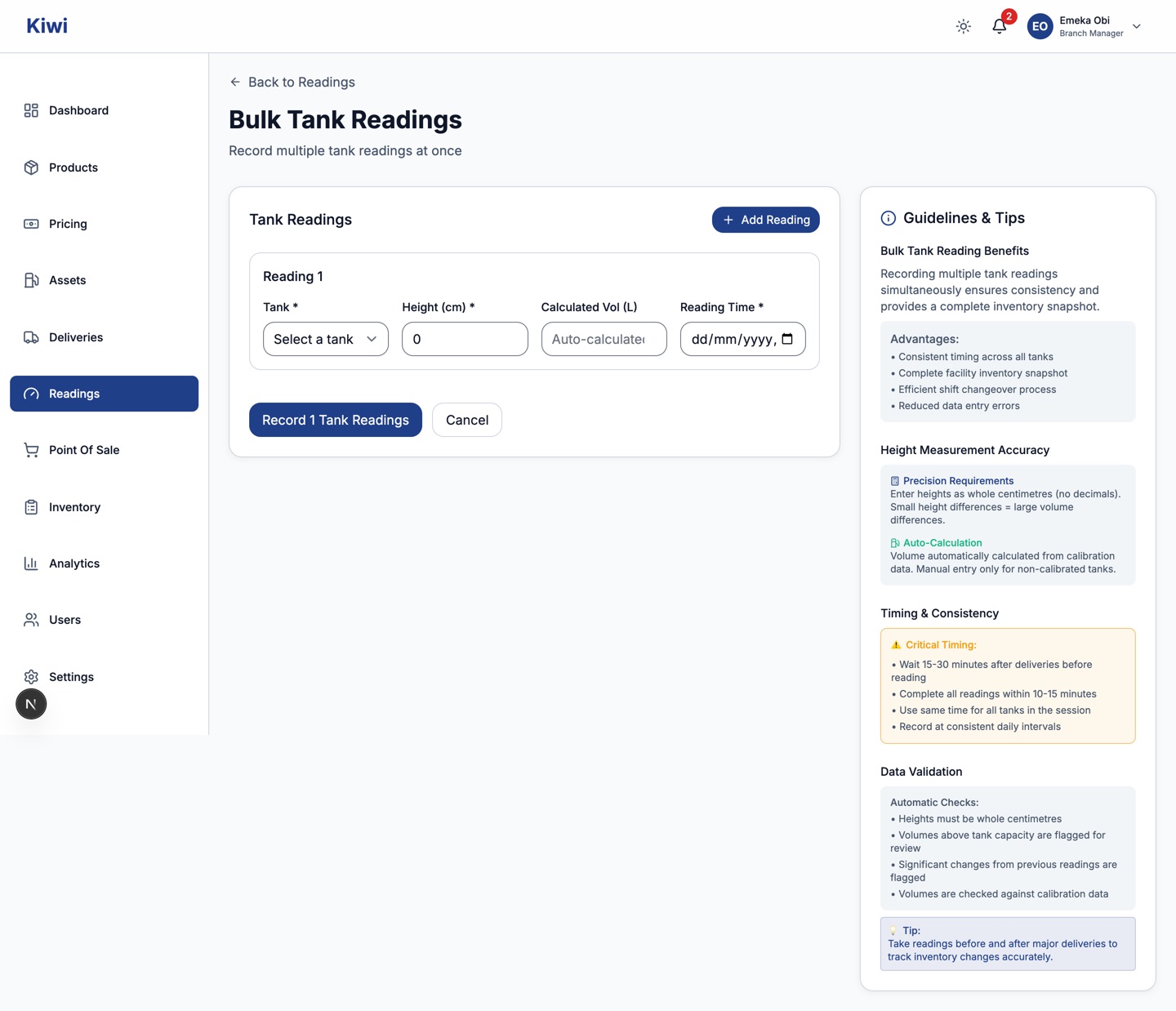
Two things the bulk forms do not support:
- Assigning a reading to a specific attendant. Use the single pump reading form when attendant accountability matters.
- No-reading and RTT entries. Record those individually.
Review and export RTT history
Managers can review all RTT activity under Operations, then RTT.
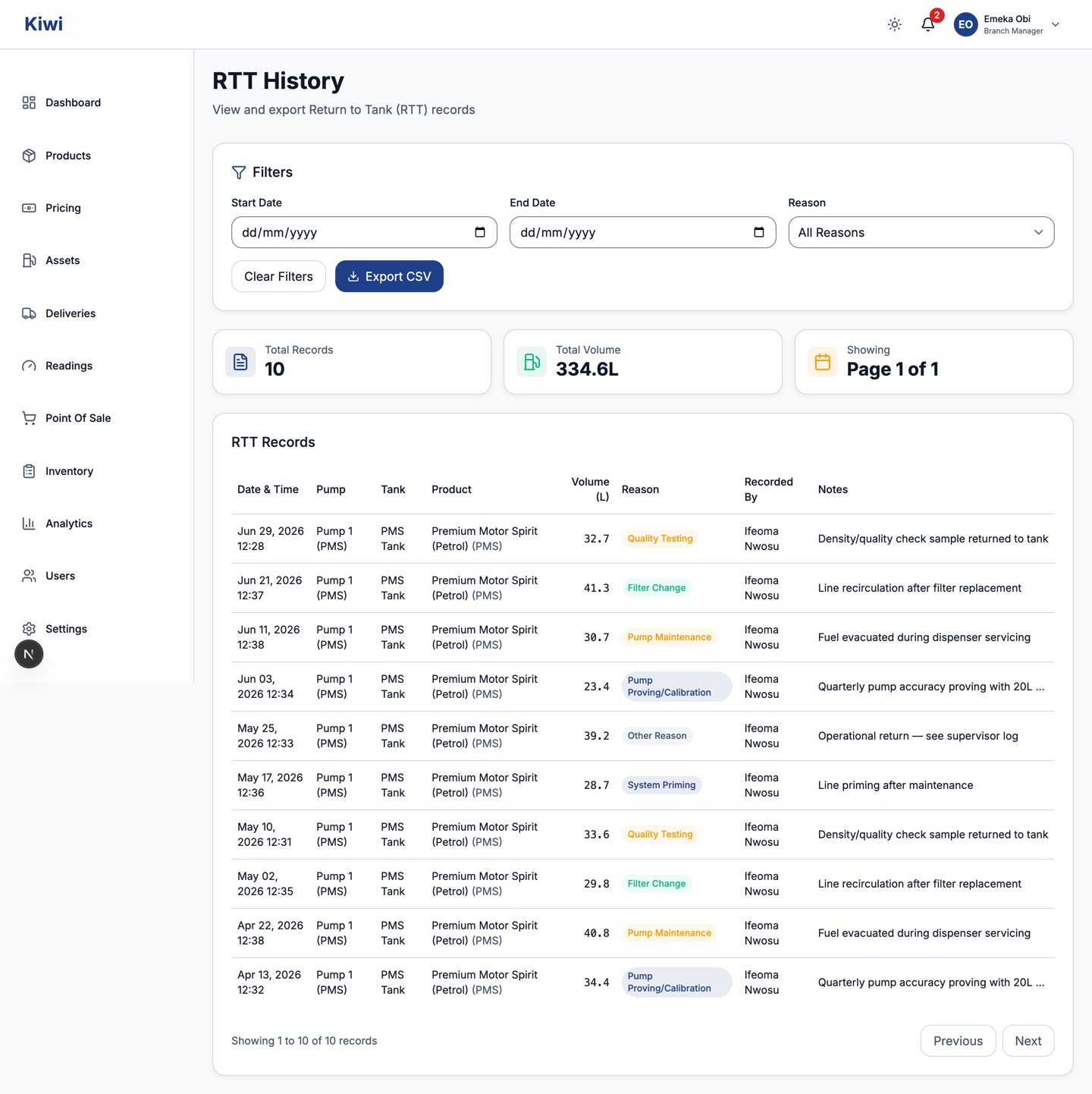
- Filter by date range and reason, and see the total records and total returned volume for the filtered period at a glance.
- Each row links the date, pump, tank, product, volume, reason, who recorded it, and the notes.
- Click Export CSV to download the filtered records for audits or head office reporting.
Quick reference
| Item | Rule |
|---|---|
| Pump meter value | Whole litres, 0 to 10,000,000, exactly as displayed |
| Tank height | Whole centimetres, 0 to 10,000 |
| Tank volume | Whole litres, up to 1,000,000; automatic for calibrated tanks |
| RTT limits (defaults) | 50 L per entry, 100 L per tank per day |
| Notes | 200 characters on a normal reading; 500 on no-reading and RTT entries |
| Bulk entry | Up to 100 readings per submission |
| Missed readings | Pumps or tanks with no reading in 24 hours raise an alert to management |
| Timezone | All times are West Africa Time (WAT) |